Split Sale window
Purpose
Use this window to split a sale among multiple employees when, for example, two employees should receive commission for a single sale.
To access this window
Complete one of the following to access this window.
- Click in the Empl box on the Sales Invoice window or Approval window and press F6.
- Click in the Employee box on the Layaway window or Proposal window and press F6.
Diagram
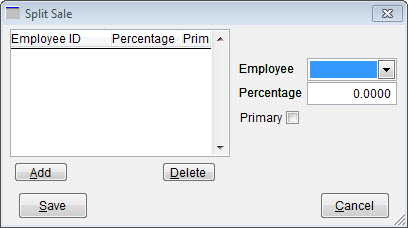
The following thumbnail illustrates the Split Sale window. Click it to view a full-size image.
Item descriptions
 Fields and boxes
| Item | Description |
|---|---|
|
Employee grid |
|
|
Employee ID |
Displays the employee ID of the staff member selected for the split sale. |
|
Percentage |
Displays the percentage of the sale assigned to the staff member. This value is recorded and reflected on the Sales Management report. |
|
Prim |
Indicates if this is the primary sales person for the sale. Select or clear this check box as necessary. |
|
Employee |
Select a staff member for the split sale. |
|
Percentage |
Enter the percentage of the sale that should apply to the selected employee. |
|
Primary |
Select this check box to identify this employee as the primary salesperson for the sale. |
Buttons
| Item | Description |
|---|---|
|
Add |
Adds the employee identified in the Employee box to the Employee grid. |
|
Delete |
Removes the selected employee from the Employee grid. |
|
Save |
Saves your changes and returns to the previous window. |
|
Cancel |
Returns to the previous window. |